
Your backup camera’s grid lines might disappear due to software updates, accidental menu changes, or physical obstructions like dirt or ice. Check your vehicle’s settings to re-enable guidelines under the camera or safety menu, then save and test in reverse. If lines still don’t appear, recalibrate the camera alignment, inspect for wiring issues, or update the system software. Cleaning the lens and ensuring secure mounts also helps. Persistent problems may require diagnostics or an aftermarket kit with built-in grid lines—further details cover specific fixes by brand and advanced troubleshooting steps.
Quick Tips
- Software updates or glitches may disable guidelines; check camera settings to re-enable parking assist lines.
- Dirt, ice, or obstructions on the lens can hide grid lines; clean the camera and ensure a clear view.
- Misaligned or loose backup cameras often cause missing lines; realign the camera and secure its mount.
- Wiring issues or damaged connections disrupt camera signals; inspect wires and repair any frays or disconnections.
- Some vehicles require calibration after repairs; use system settings or dealer tools to recalibrate camera guidelines.
Why Did My Backup Camera Grid Lines Disappear?
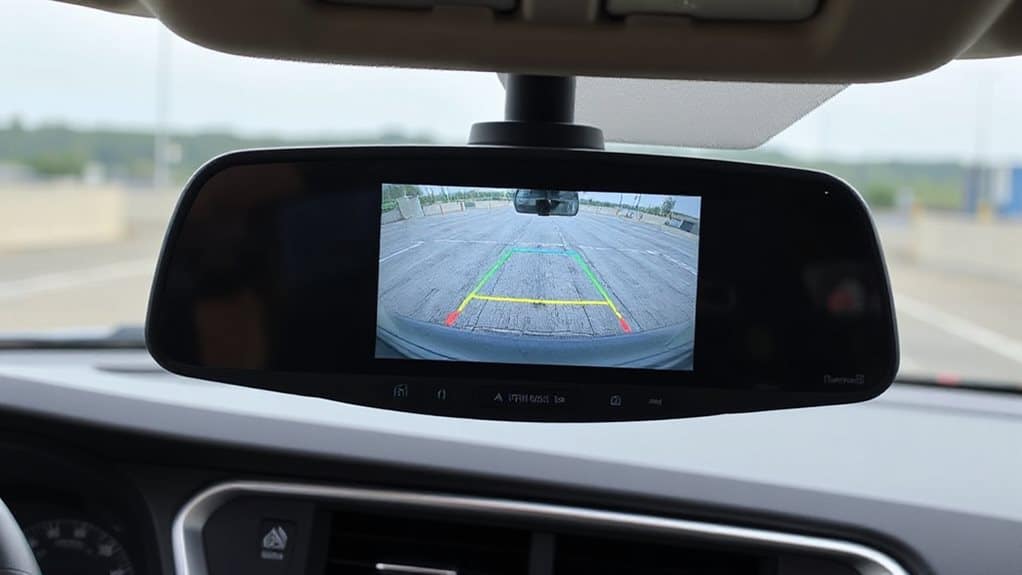
While you mightn’t notice it right away, your backup camera’s grid lines can disappear for several specific reasons, most of which are tied to settings, hardware, or external factors.
Software updates may reset display options automatically, while accidental menu changes or system glitches can disable them without warning.
Physical obstructions like dirt or misaligned cameras, plus wiring issues from repairs, also disrupt functionality. Regular maintenance like cleaning the lens and checking wiring can prevent many common problems.
Some systems rely on moving grid lines that adjust with steering angle, and if the calibration is lost, the lines may not display correctly or disappear entirely.
Fix Missing Grid Lines in Camera Settings
Get started by pulling up your vehicle’s camera settings menu, where you can restore the backup camera grid lines with a few precise steps. Press the settings icon, then select “Camera” or “Safety” options.
Find “Guidelines” or “Parking Assist Lines” and toggle them on. Adjust line width, angle, and position for accuracy.
Save changes, shift in and out of reverse to confirm, and reboot if needed. For persistent issues, check the vehicle’s receiver/actuator and wiring to rule out a system or hardware problem.
Calibrate Your Backup Camera Guidelines
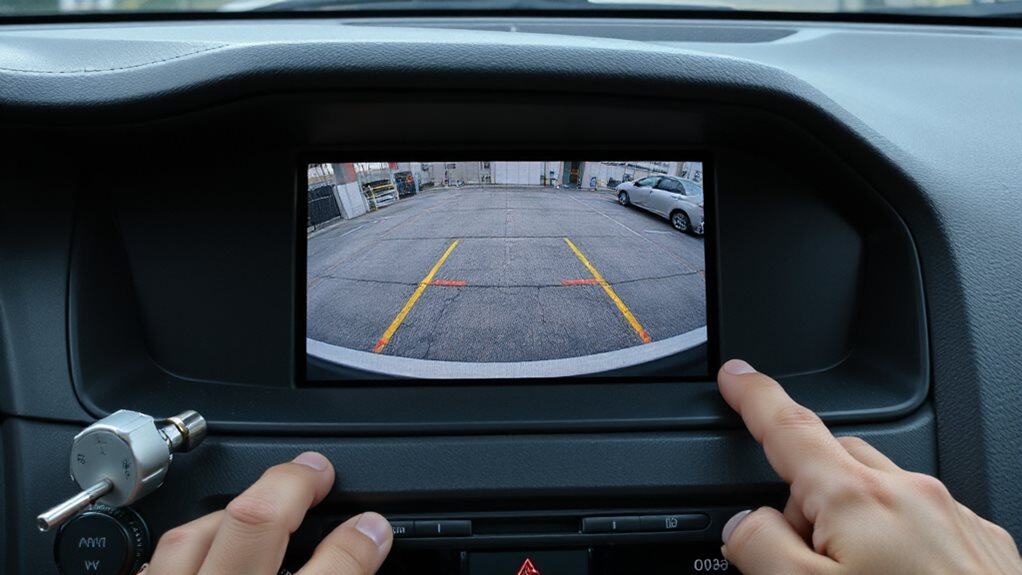
Once you’ve confirmed the grid lines are enabled in your settings, it’s time to calibrate them for accurate alignment.
Clear the area, chock the wheels, and mark 1 meter behind the vehicle. Position it straight, use tape references, then access the camera menu. Adjust guidance lines by dragging corners to match ground marks, tilt the camera, and fine-tune offsets. Confirm the red zone aligns with your bumper, tighten screws, and test in reverse. Also check related vehicle sensors and connections for faults that could affect camera guidance wheel speed sensors.
Clean and Check the Camera for Physical Issues
A surprising number of backup camera issues stem from simple physical problems that you can identify and fix without special tools.
Wipe the lens to remove dirt, smudges, or ice blocking the view.
Check for misalignment after tailgate work, and inspect cables for frays or loose connections.
Make sure nothing obstructs the camera—like a license plate frame—and verify all mounts and screws are secure to restore proper grid line display.
Also consider inspecting related components for mechanical wear that could affect camera mounting and connections.
Update Software to Restore Grid Lines
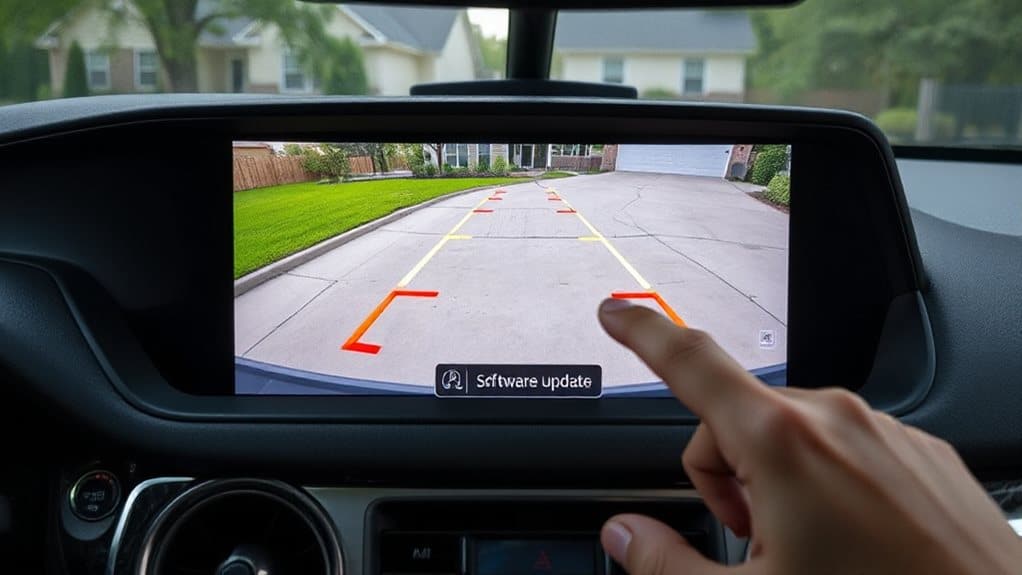
While physical issues often cause backup camera problems, software-related glitches can also make grid lines disappear—especially after replacing the camera or updating your vehicle’s system.
You’ll need to update or reset the software to restore them. Run a Sync update, perform a system reset, or clear the cache through the diagnostic menu. These steps recalibrate the display, ensuring grid lines reappear and function correctly post-replacement or update. Many professional owners use dealer-level OBD2 tools to run deeper diagnostics and confirm system-level faults.
Use an Aftermarket Kit to Add Grid Lines
If your factory backup camera lacks grid lines or they’ve stopped appearing, installing an aftermarket kit can get those helpful guides back on screen. Choose a compatible kit with a CMOS camera and optional gridlines, like the Brandmotion Dual Mount.
Connect the white wire for rear camera lines, cut the green wire to disable them if needed, and guarantee solid grounding. Test by shifting into reverse. A common cause can be a faulty module or wiring, so check the vehicle’s keyless entry module location and wiring before replacing components.
Prevent Grid Lines From Disappearing Again
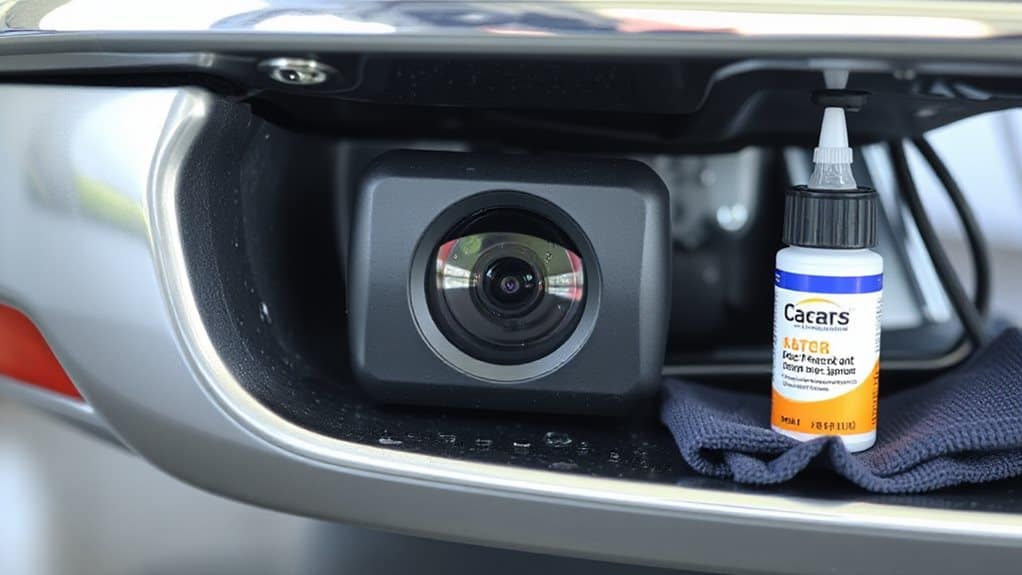
Now that you’ve installed an aftermarket kit to restore your backup camera’s grid lines, keep them working reliably with a few preventive steps.
Align the camera precisely using a measuring tape and secure mounting. Regularly check physical connections, clean the lens, and inspect for corrosion. Update firmware, stabilize menu settings, and protect against extreme temperatures. Test lines often to catch issues early.
Common Car-Specific Grid Line Fixes (Toyota, Honda, GMC)
If your Toyota Tacoma’s grid lines aren’t showing, check if the tailgate is fully latched—sometimes it seems closed but isn’t, which disables the lines.
For Honda models, head to the vehicle settings menu on the dashboard display and make sure the parking assist lines are turned on, since they can get toggled off accidentally.
A quick system reset—by restarting the vehicle and shifting into reverse—often brings the grid lines back on both Toyota and Honda models.
Toyota System Reset Steps
With the vehicle powered on and shifted into reverse, access the center display to begin resetting your Toyota’s backup camera system. Tap the settings icon, then select “Safety and Driving Assistance” or “Camera Settings.”
Enable “Active Guidelines” under “Parkview Backup Camera.” Restart the engine, shift into reverse, and confirm the grid lines appear. If issues persist, repeat after a software update.
Honda Menu Navigation Tips
When your Honda’s backup camera grid lines vanish unexpectedly, a targeted reset of the infotainment system often restores them without erasing your saved settings.
Hold the on/off and menu buttons together for 10–15 seconds until the screen blanks and displays “infotainment centre turned off. Click OK.”
After restarting, check settings to toggle both fixed and adaptive grid lines back on, ensuring they stay visible.
Wrapping Up
You can fix missing backup camera grid lines by checking settings, recalibrating the system, or cleaning the camera lens. Software updates often restore lost features, while physical damage may require repair. Aftermarket kits add grid lines if factory options fail. Prevent future issues by maintaining your system and updating software regularly. For brand-specific fixes—like on Toyota, Honda, or GMC—consult your manual or a technician familiar with your model’s backup camera system.


